

This guide explains how to correctly prepare and import AutoCAD drawings (DWG/DXF) into PROKON Padds for reinforcement detailing and for creating 2D drawings.
Prepare the DWG/DXF File (Very Important)
Before importing, clean the drawing in AutoCAD:
- Purge unused layers (PURGE)
- Remove unnecessary blocks, hatches, dimensions, text notes and tittle blocks
- Ensure drawing is in Model Space
- Confirm correct units (mm recommended)
- Move geometry close to origin (0,0)
- Save as: DXF or DWG, Depending on the preferred format.
Clean files import faster and avoid scaling issues.
Import the DWG/DXF File
- Open PROKON Padds
- Launch PROKON Padds
- Go to:
- File → Import → Read DWG/DXF/CEX
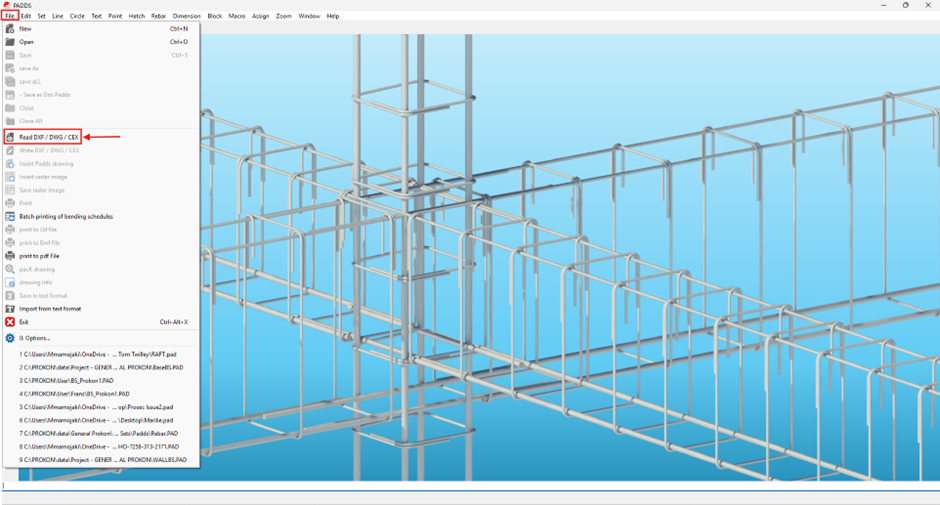
- Browse to your DWG or DXF file
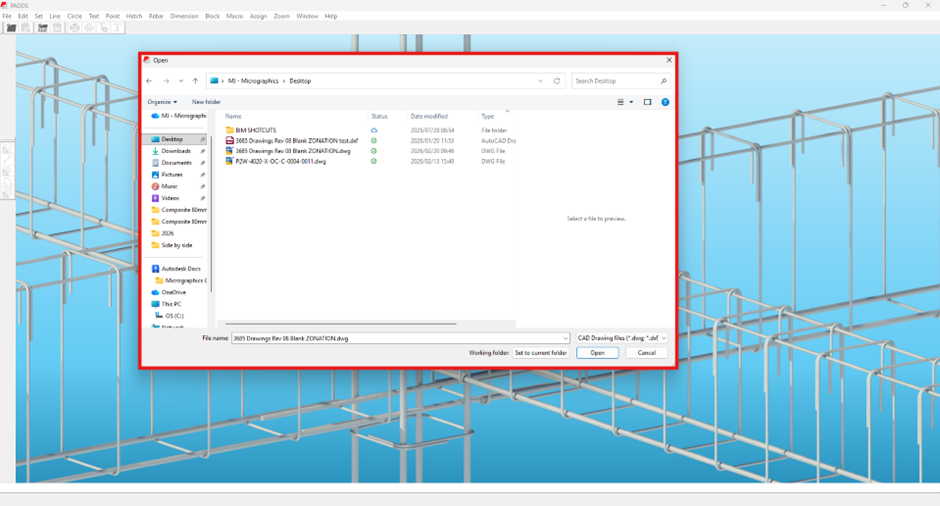
- In the import dialog:
- Select the file
- Choose format:
- CAD Drawing file ( *.dwg, *.dxf ) for DWG
- DXF File (*.dxf) for DXF
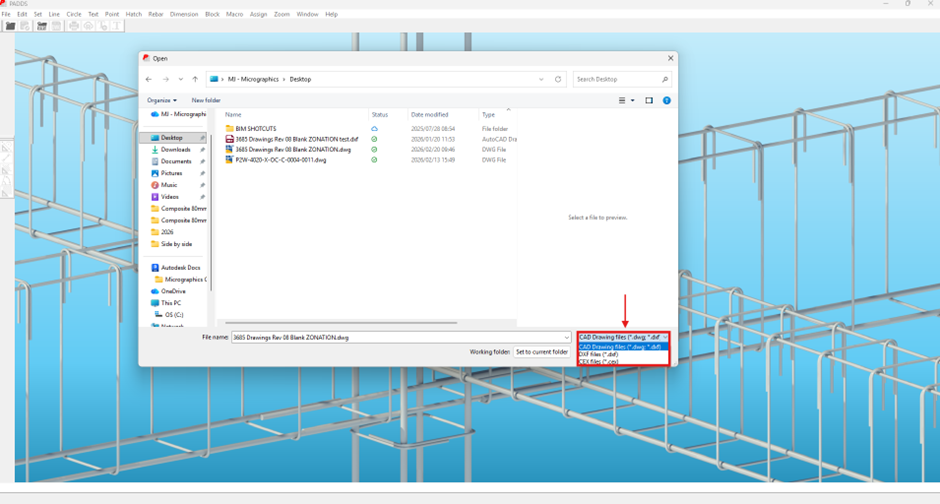
- Click Open
Import Prompts Explained
Pen Width setting
- You will be asked:
- if you want to change your pen width settings? (YSE/NO)
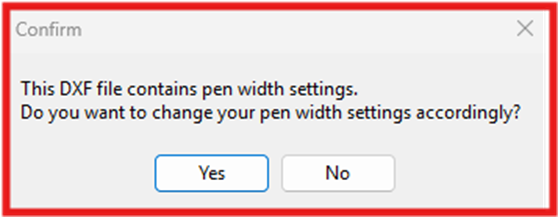
- YES → Apply DWG lineweight settings
- NO → Keep current Padds pen settings
Fit Drawing on Paper
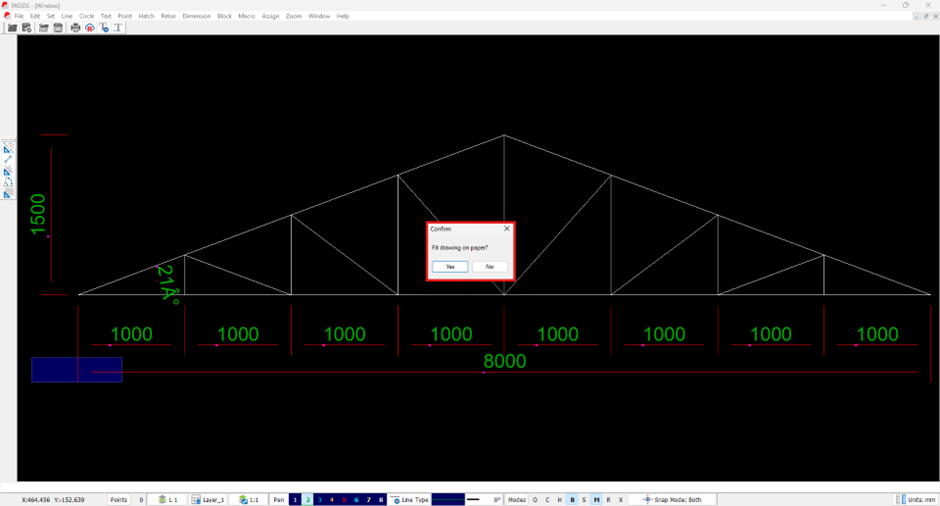
If you select YES, you must confirm:
- Paper size
- Page orientation
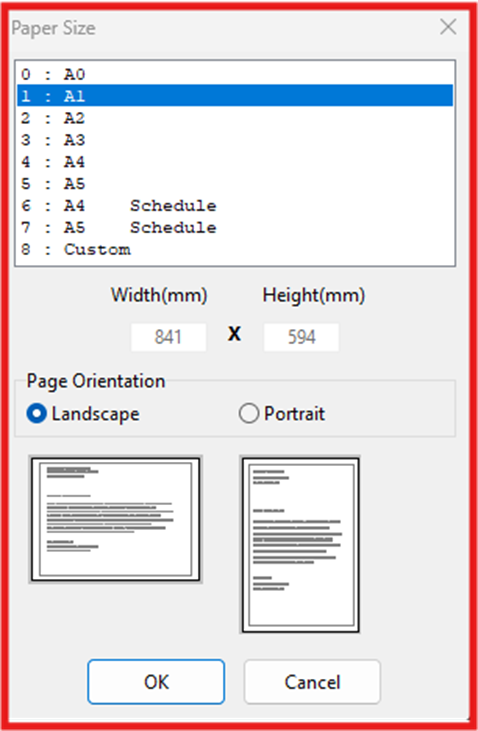
Verify Scale After Import
After the drawing loads:
- Use the Distance Tool
- Measure a known dimension
If dimension is incorrect:
- Check original AutoCAD units
- Apply scale factor if needed
Common issue:
- AutoCAD drawing in meters
- Padds working in millimetres
- Requires scale factor of 1000
Layer Management
After import:
- Open Layer Manager
- Turn off unnecessary layers
- Freeze or lock architectural layers
- Keep structural outlines visible
Best practice:
- Use imported drawing as an underlay
- Create reinforcement on separate Padds layers
- Lock imported layers to avoid accidental editing
Exploding Blocks (If Required)
If the file imports as blocks:
- Use Explode to break blocks into editable lines
- Only explode if necessary
Save as Native Padds Drawing
- Once satisfied:
- Save as .pad file
This:
- Improves performance
- Reduces re-import issues
- Keeps project clean
Troubleshooting
- Drawing imports very small or very large
- Unit mismatch – check mm vs m
- Drawing imports blank
- Geometry may be far from origin
- Lines not visible
- Check layers are turned on
Best Practice for Reinforcement Detailing
- Use imported DWG only as background reference
- Lock imported layers
- Do not draw reinforcement on imported layers
- Always verify dimensions before detailing
Was this helpful?
Thanks for your feedback!
