
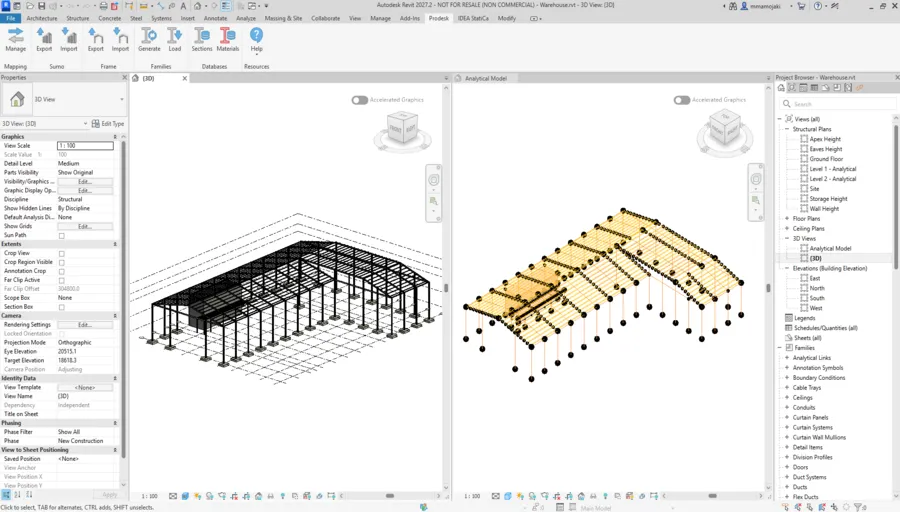
The integration between Building Information Modelling (BIM) and structural analysis is becoming increasingly important for structural engineering teams looking to improve productivity, coordination and model consistency. Instead of recreating a structural model manually in analysis software, engineers can use ProDesk to help bridge the workflow between Autodesk Revit and Prokon.
This approach creates a more connected workflow from structural modelling and documentation in Revit through to analysis and design in Prokon.
What is Prodesk?
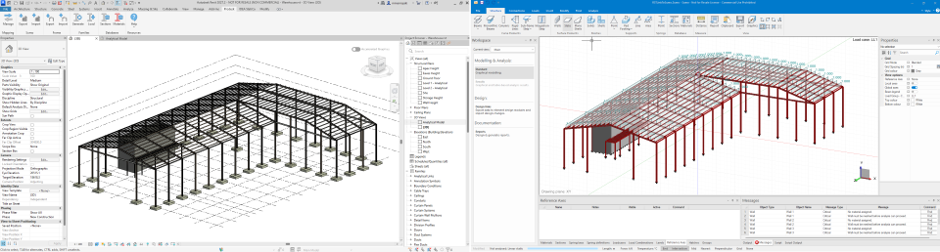
Prodesk provides a link between Revit and Prokon, allowing structural information from a Revit model to be transferred into the Prokon environment.
Traditionally, a structural engineer may model a building in Revit for BIM and documentation purposes and then recreate the same structure in structural analysis software. This duplicated modelling process can take considerable time and introduces opportunities for discrepancies between the two models.
The Revit-to-Prokon workflow aims to reduce this duplication by allowing structural information already defined in Revit to form the basis of the Prokon analytical model.
Key benefits
A connected Revit–Prokon workflow can provide several benefits to structural engineering teams:
- Avoid remodelling the structure in multiple software environments.
- Reduce manual work associated with transferring structural information.
- Improve coordination between BIM modelling and structural analysis.
- Maintain a stronger connection between the physical and analytical models.
- Allow structural information to move between Revit and SUMO.
- Make it easier to manage changes to the main structural model.
- Improve collaboration between structural engineers, BIM professionals, and other project stakeholders.
- Support a more efficient BIM-based structural engineering workflow.
- Collaborate with industry professionals
- Manage changes on the main model
Key Features
ProDesk supports several workflows between Revit and Prokon, including:
- Exchange models between Sumo and Revit®
- Exchange models between Frame and Revit®
- Import custom sections to Revit®
These capabilities allow ProDesk to act as a bridge between the BIM environment and Prokon’s structural analysis and design tools.
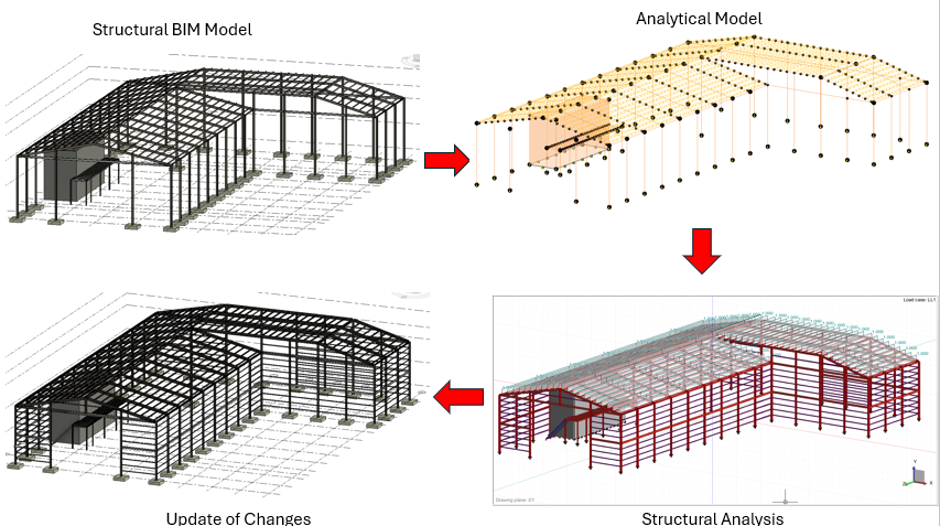
The Overall Workflow
A typical workflow can be represented as:
Revit →Analytical Automation → ProDesk → SUMO → Prokon Design Modules→ Revit →ProDesk →Revit
Each stage has a specific purpose.
- Revit
Create and coordinate the physical structural model.
- Analytical Automation
Prepare and establish the analytical representation of the structure.
- ProDesk
Transfer the relevant structural information between Revit and Prokon.
- SUMO
Review, complete, and analyse the structural model.
- Prokon Design Modules
Perform the required structural design using the appropriate Prokon modules.
- ProDesk → Revit
Transfer relevant updates back into Revit for coordination and documentation.
Preparing the Revit Model
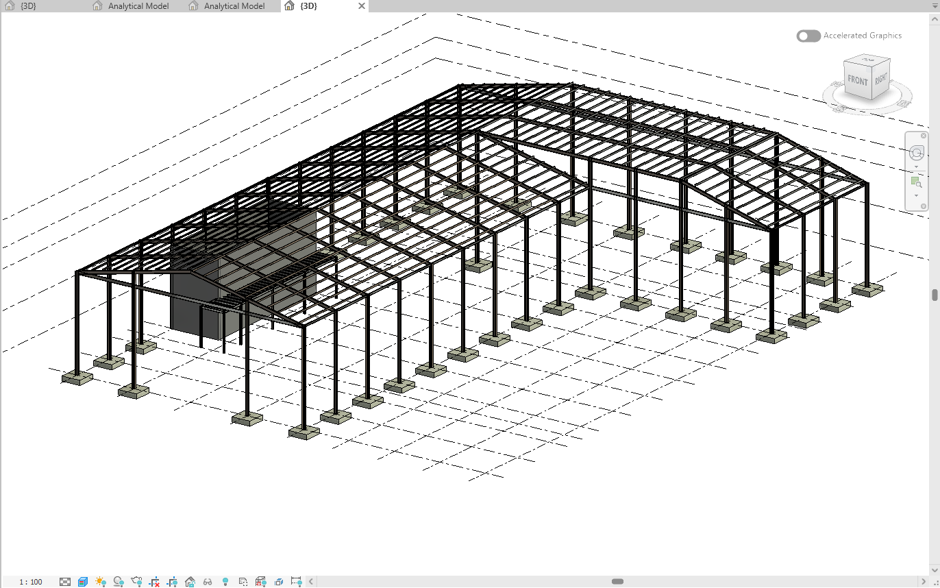
Before exporting a model to Prokon, it is important to ensure that the Revit model has been properly prepared.
Ensure that:
- Structural elements are correctly modelled.
- Beams and columns are properly connected.
- Slabs and walls are correctly defined.
- Structural framing is identified as structural.
- Levels are correctly established.
- Element sections and materials are appropriate.
- The analytical model is suitable for analysis.
Key principle:
A well-prepared Revit model produces a much cleaner analytical model.
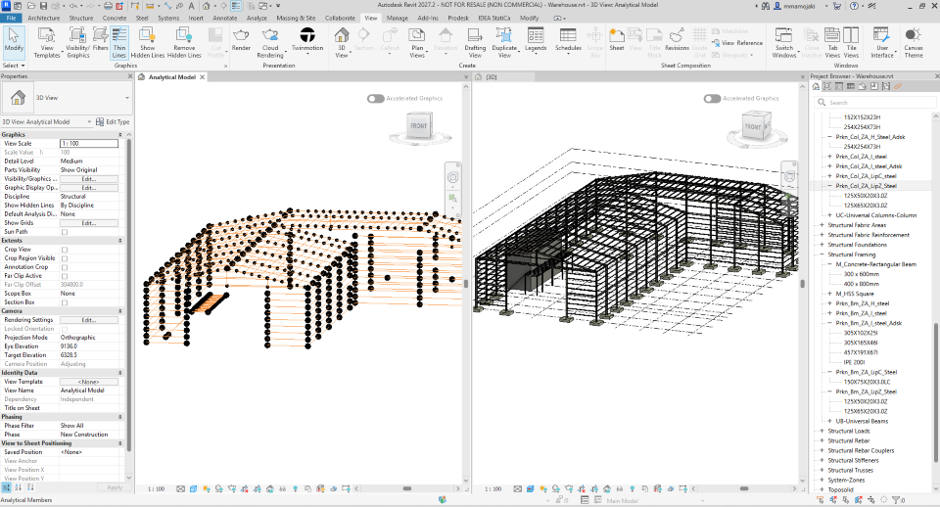
Physical Model vs Analytical Model
One of the most important concepts when working between Revit and structural analysis software is understanding the difference between the physical model and the analytical model.
Physical Model
The physical model represents what is constructed.
Examples:
- Columns
- Beams
- Slabs
- Walls
- Foundations
It primarily describes the physical arrangement and geometry of the structure.
Analytical Model
The Analytical Model represents how the Engineers intend the structure to behave.
Examples:
- Analytical nodes
- Analytical lines
- Analytical surfaces
- Supports
- Connectivity
The analytical model is therefore used to represent the structural system for analysis.
Important:
The physical and analytical models need to correspond correctly for a successful analysis workflow.
Analytical Automation
Analytical Automation assists with preparing the analytical model from the physical Revit model.
It can help with:
- Creating analytical relationships.
- Improving connectivity between structural elements.
- Identifying analytical elements.
- Preparing the model for structural analysis
Creating the Analytical Model
To convert the physical model into an analytical model:
- Navigate to: Analyze tab→ Structural Analytical Model Panel→ Analytical Automation→ Run Physical to Analytical to Building
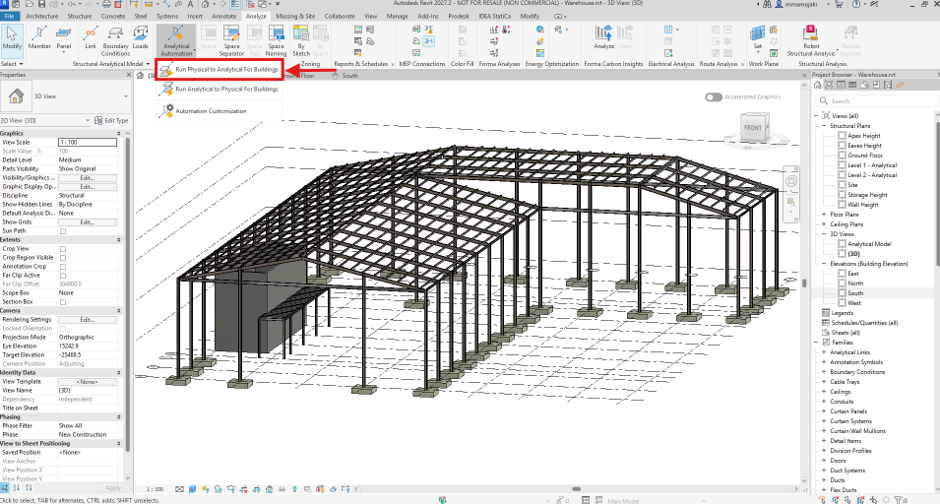
- The program will select the relevant structural components in the model
- Review the selected elements and select Run to start the analytical automation process.
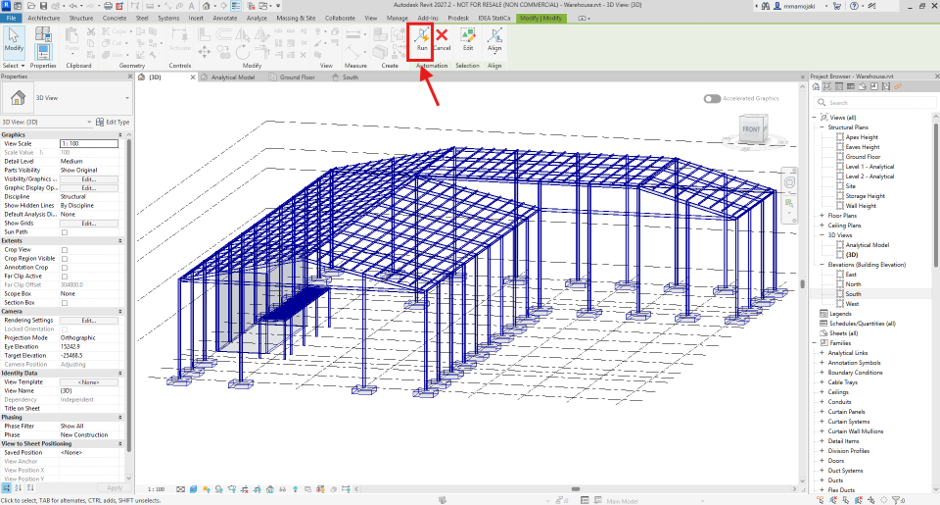
- Once the automation is complete, the analytical model will be created.

- Analytical Automation helps create the analytical model, but it does not replace engineering review.
- The resulting analytical model should always be checked before it is exported for analysis.
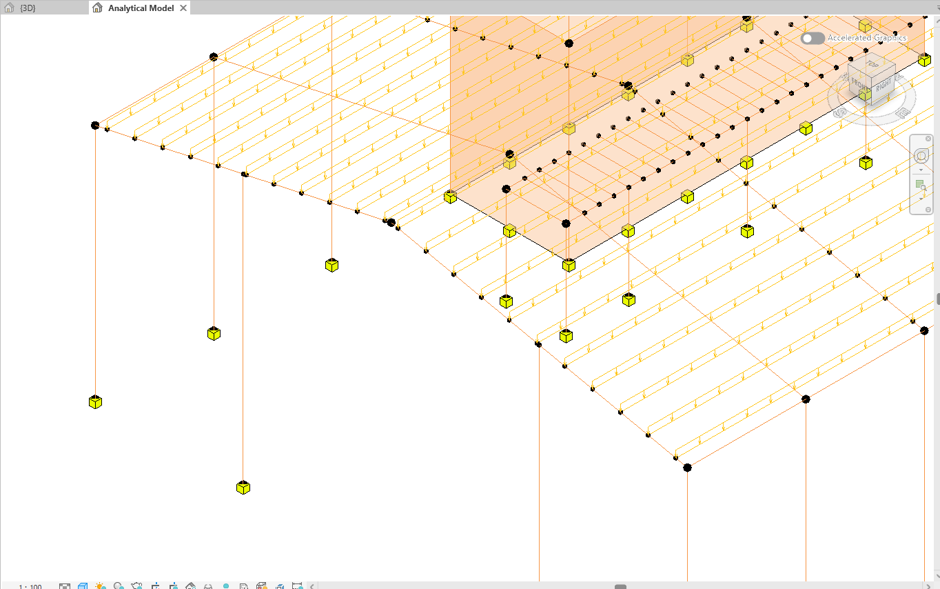
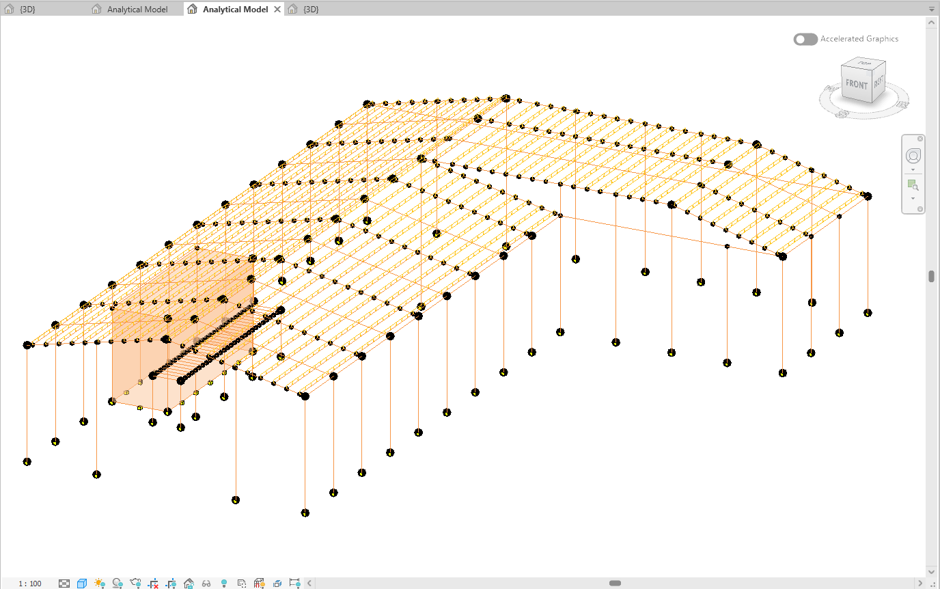
For example, in the demonstration model:
- Point supports were added to the columns.
- A line support was added to the wall.
Applying Loads and Load Cases
Loads can also be defined in the analytical model.
Navigate to:
Analyze → Structural Analytical Model → Loads
Depending on the structural system, you can apply:
- Point loads
- Line loads
- Area loads
You can also define how the load is applied, such as:
- On the host
- Define Path
Load cases can then be assigned according to the loading requirements of the project, for example:
- Dead Load
- Live Load
- Wind Load
- Other imposed loads
Loads may represent either forces or moments, depending on the requirements of the analysis.
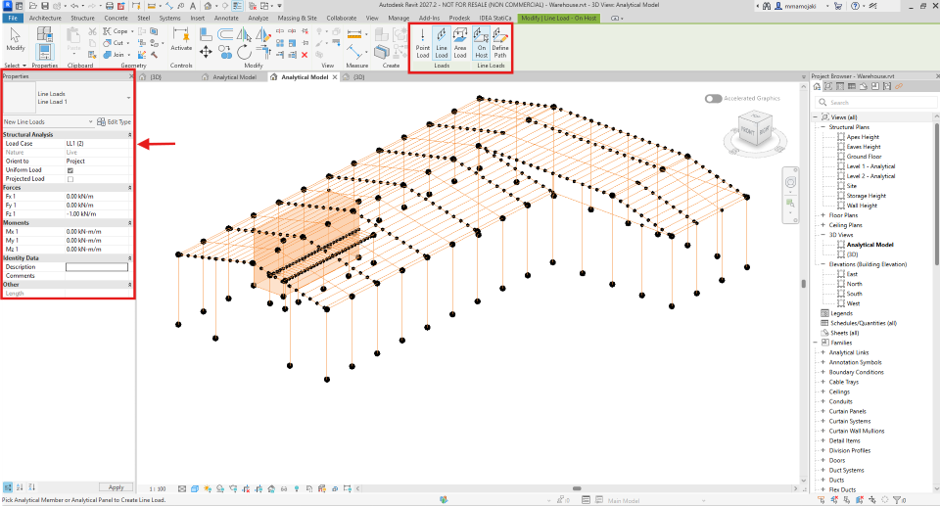
For the demonstration model, only a live load case, LL1, was applied to the purlins.
Preparing the Model for Export
Before exporting the model through ProDesk, complete a final pre-export check.
Pre-Export Checklist
- Structural elements correctly defined
- Correct levels
- Correct sections
- Correct materials
- Analytical model reviewed
- Element connectivity checked
- Boundary conditions reviewed
- Load cases reviewed
- Unnecessary elements removed
- Model saved
This is an important quality-control stage.
Exporting with Prodesk
Once the Revit model has been prepared, the structural model can be exported through ProDesk.
In Revit:
Navigate to the ProDesk tab → SUMO panel → Export
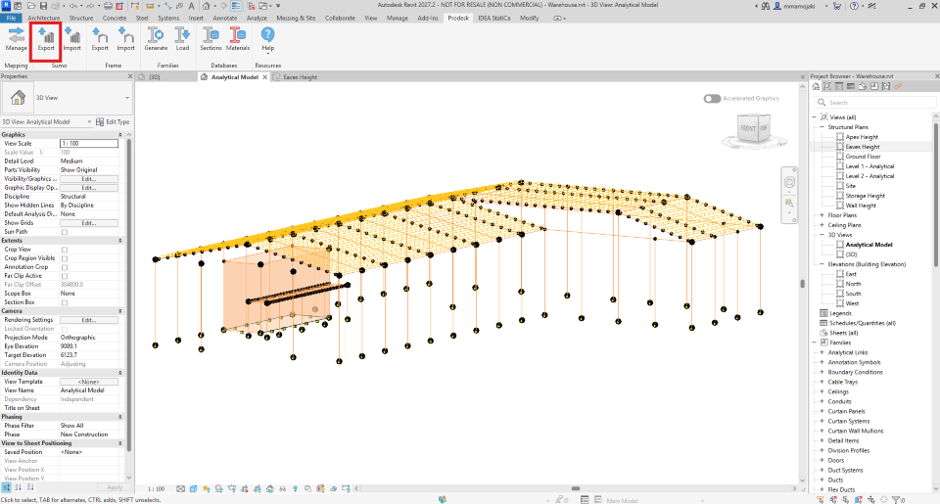
The export options allow you to configure how information is transferred between Revit and SUMO.
Export Configuration
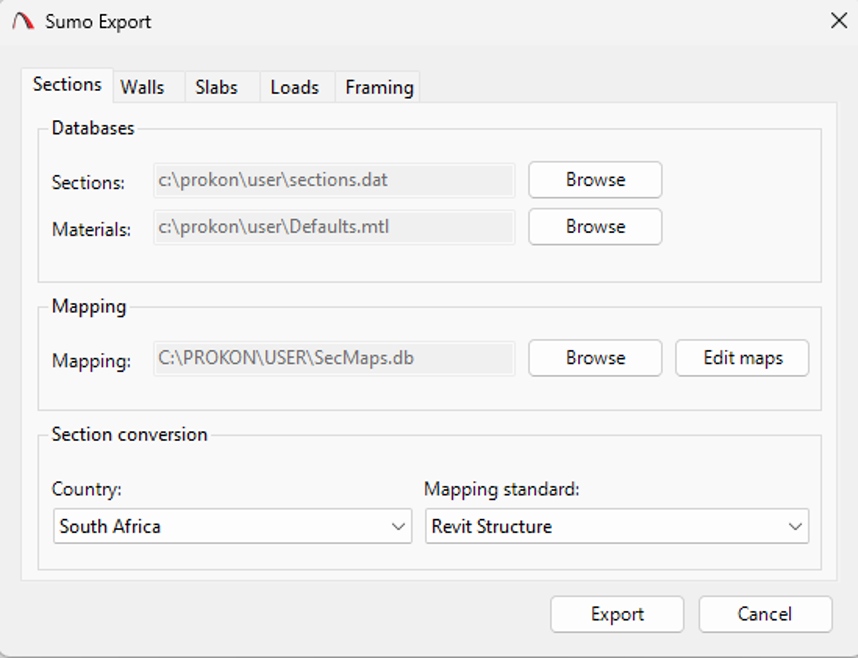
Databases, Mapping and Section Conversion
Configure the required:
- Databases
- Mapping
- Section conversion
These settings control how structural information is interpreted when transferred into SUMO.
Walls
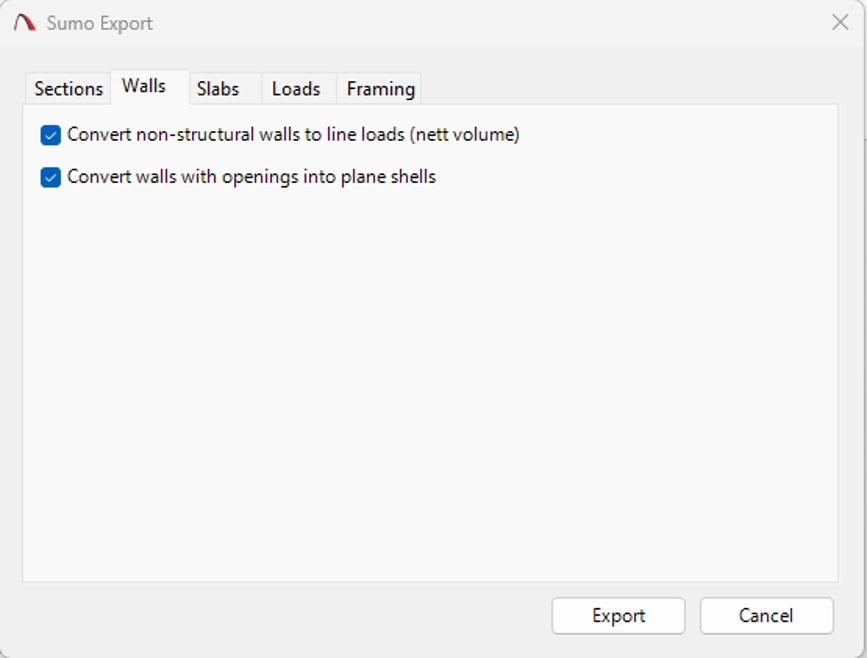
Configure the wall conversion settings.
For example:
- Walls with openings can be converted to plane shells.
- Non-structural walls can be converted to line loads, where appropriate.
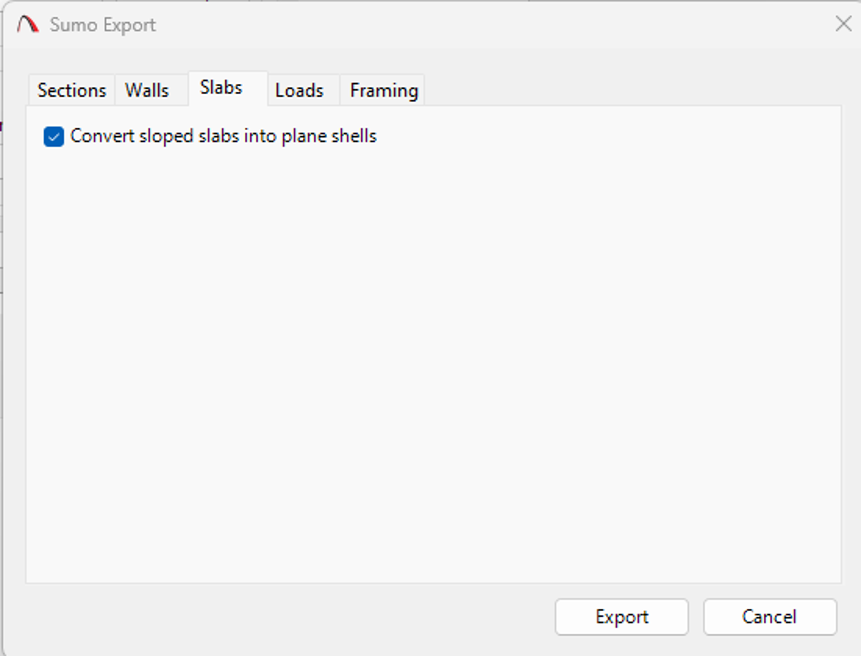
Sloped Slabs
Sloped slabs can be configured to be converted into plane shells.
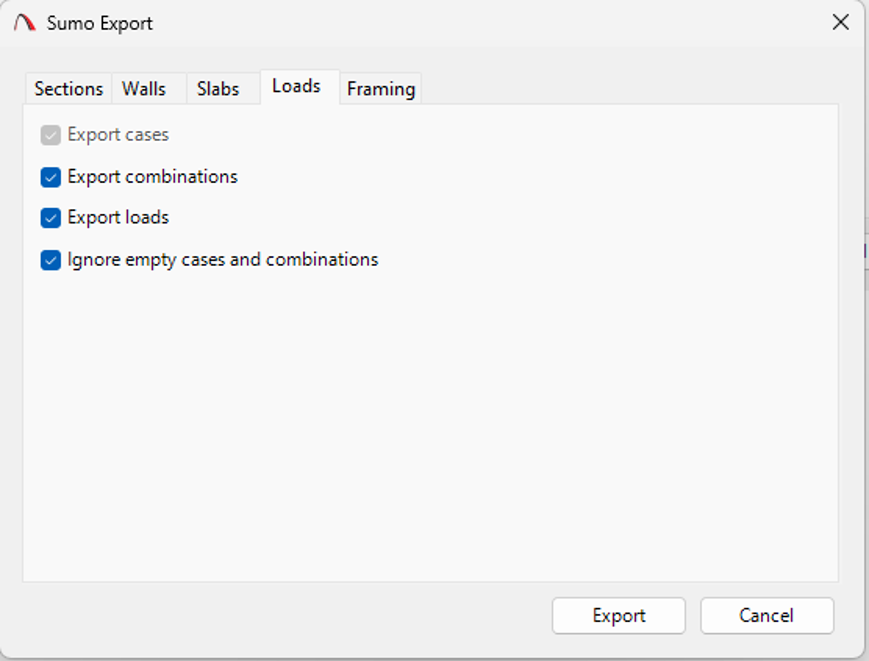
Loads
Configure the export of:
- Loads
- Load combinations
- Empty load cases
- Empty combinations
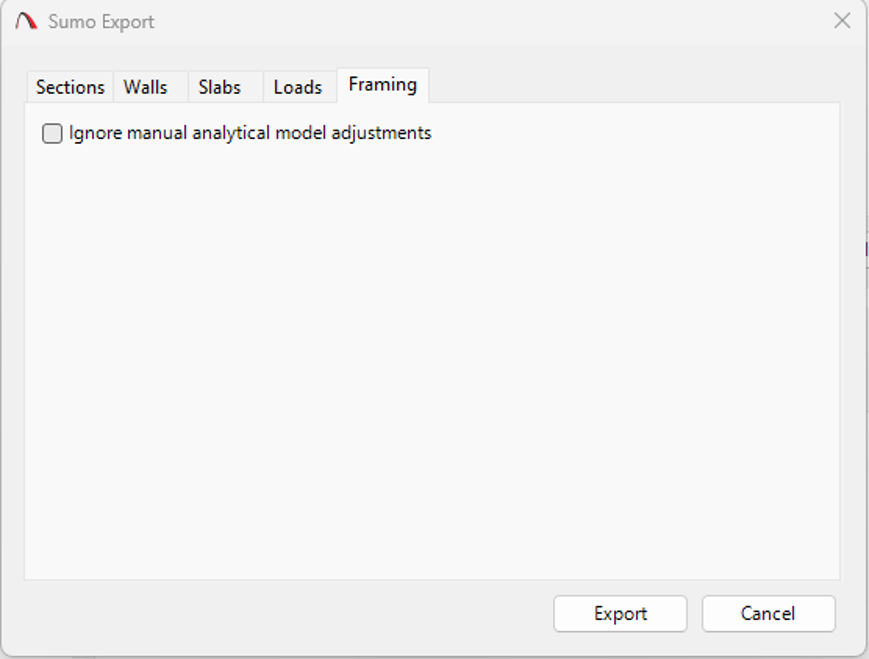
Framing
Configure whether manual adjustments to framing should be included or ignored during the export.
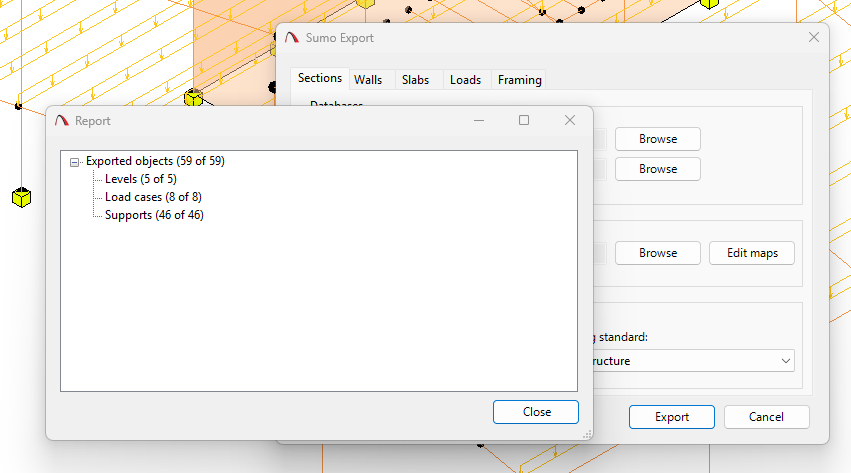
Once the required options have been configured, export the structural model.
Information Transferred to SUMO
The information transferred through the workflow can include:
- Structural geometry
- Member sections
- Materials
- Element information
- Analytical relationships
- Supports
- Loads, where configured
The exact information transferred will depend on the export configuration and the elements contained within the Revit model.
Working in SUMO
Once the model is exported to Prokon SUMO, review the model before performing the analysis.
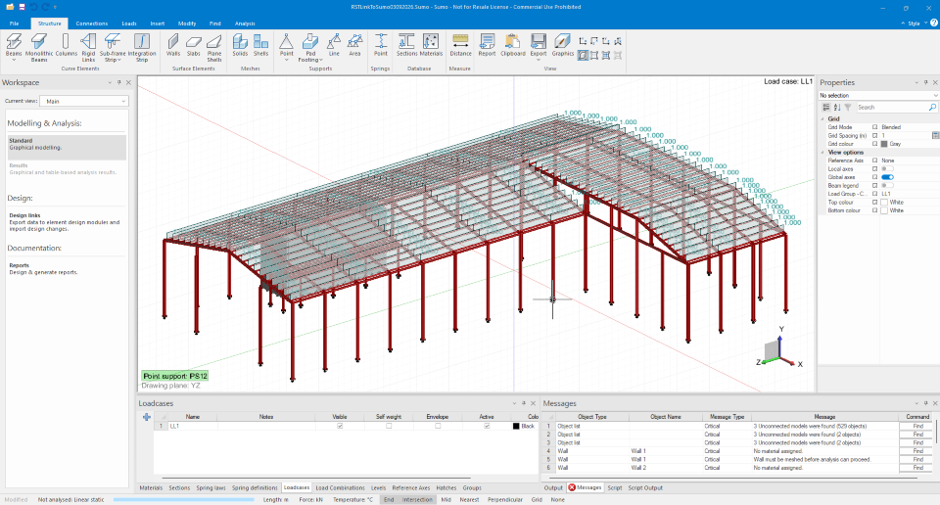
Review:
- Geometry
- Nodes
- Beams
- Columns
- Slabs
- Walls
- Supports
- Materials
- Sections
- Connectivity
Do not immediately run the analysis.
First confirm that the model represents the intended structural system.
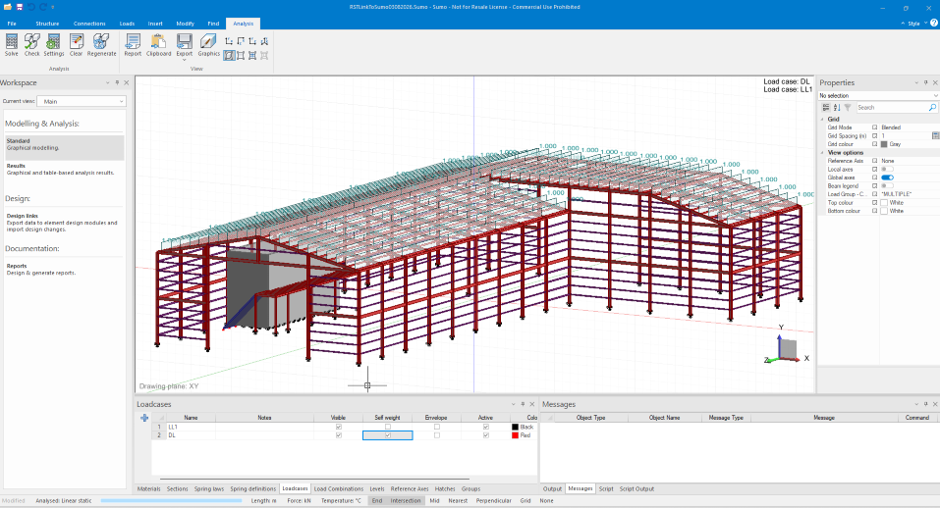
Completing the SUMO Model
Depending on the project, additional information may need to be added in SUMO.
Typical analysis inputs
- Supports
- Dead loads
- Live loads
- Wind loads
- Other imposed loads
- Load combinations
- Material properties
- Section properties
- Analysis settings
Remember
- Revit is primarily the BIM and modelling environment.
- SUMO is the structural analysis environment.
- The objective of the transfer is therefore not to eliminate engineering judgement, but to reduce repetitive modelling and provide a better starting point for analysis.
Running the Analysis
Once the SUMO model has been reviewed and completed, the analysis can be performed.
A typical analysis process is:
- Validate model
- Check analysis inputs
- Run analysis
- Review warnings/errors
- Review results
- Modify model if required
- Re-run analysis
Analysis should be an iterative process, not simply a single command.
Accessing Output & Results
After completing the analysis, review:
Global results
- Support reactions
- Displacements
- Stability
- Equilibrium
Member results
- Axial forces
- Shear forces
- Bending moments
- Torsion
Slab/Shell results
- Moments
- Shear forces
- Deflections
Returning the Model to Revit
Once the analysis and design process has been completed, the updated model can be transferred back into Revit.
- First Save the SUMO model.
- Then In Revit: Navigate to the ProDesk tab → SUMO panel → Import SUMO
- Select the import functionality.

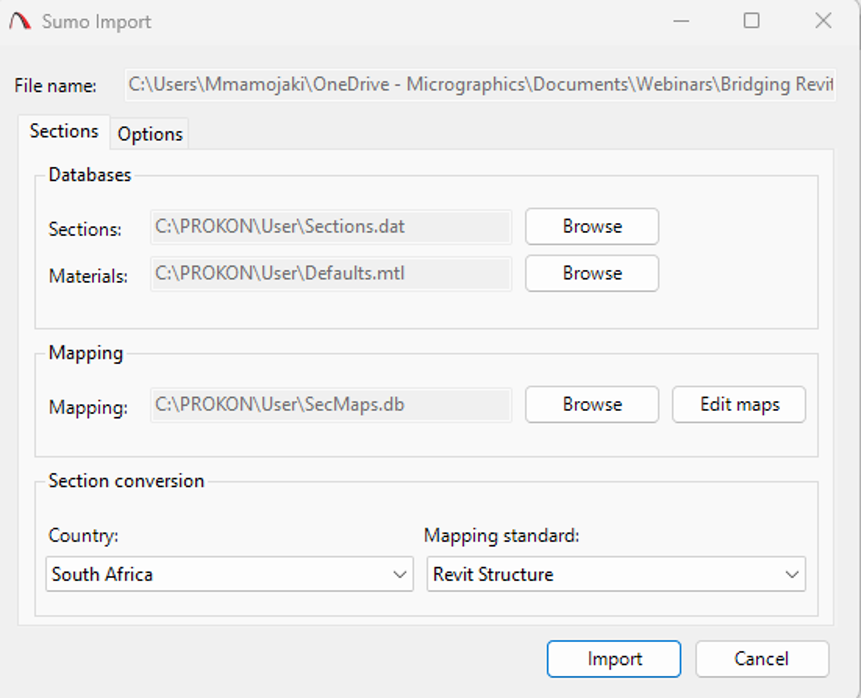
- Import Configuration
- The import process allows you to configure:
- Databases, Mapping and Section Conversion
- Configure the relevant:
- Databases
- Mapping
- Section conversion
- Configure the relevant:
- Databases, Mapping and Section Conversion
- The import process allows you to configure:
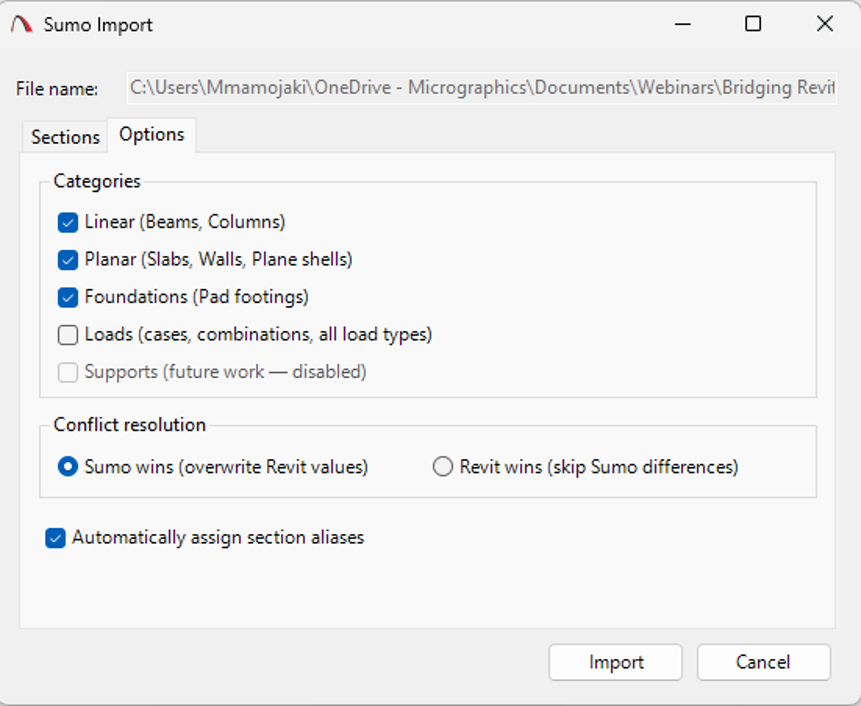
- Categories and Conflict Resolution
- Configure:
- Revit categories
- Conflict resolution
- Other applicable import options
- Configure:
- Once all configurations have been completed, select Import.
- The updated information is imported into the Revit analytical model, with the physical model updated automatically where applicable.
- This allows the Revit model to reflect the latest structural information following the analysis and design process.
The Most Important Lesson
The biggest advantage of a Revit-to-Prokon workflow is not simply the ability to transfer a model.
The real benefit is the reduction of repetitive modelling and manual data transfer while maintaining a more structured relationship between the BIM and structural engineering environments.
However:
Model transfer is not the same as model validation.
A model that transfers successfully is not necessarily a model that is ready for structural analysis.
The engineer must still verify:
- Geometry
- Connectivity
- Supports
- Loads
- Materials
- Sections
- Boundary conditions
- Analysis assumptions
- Structural behaviour
- Analysis results
Conclusion
Bridging Revit & Prokon Using ProDesk provides a practical approach to connecting BIM modelling with structural analysis and design.
By transferring structural information between Revit and Prokon, engineering teams can reduce repetitive modelling, improve coordination, and create a more connected workflow between the physical and analytical representations of a structure.
The workflow can be summarised in one simple principle:
Model → Transfer → Review → Validate → Analyse → Design → Coordinate
The technology helps connect the different stages of the structural engineering process, but engineering judgement remains at the centre of the workflow.
The goal is not to replace the engineer’s role—it is to reduce manual work so engineers can spend more time engineering.
